

Setting Up Categories
What categories are
Categories are the main way visitors browse your directory by type — think CRM, Accounting, Marketing, or whatever groupings fit your integrations. They are a public, hierarchical taxonomy, so you can nest child categories under parents (for example, Email under Marketing).
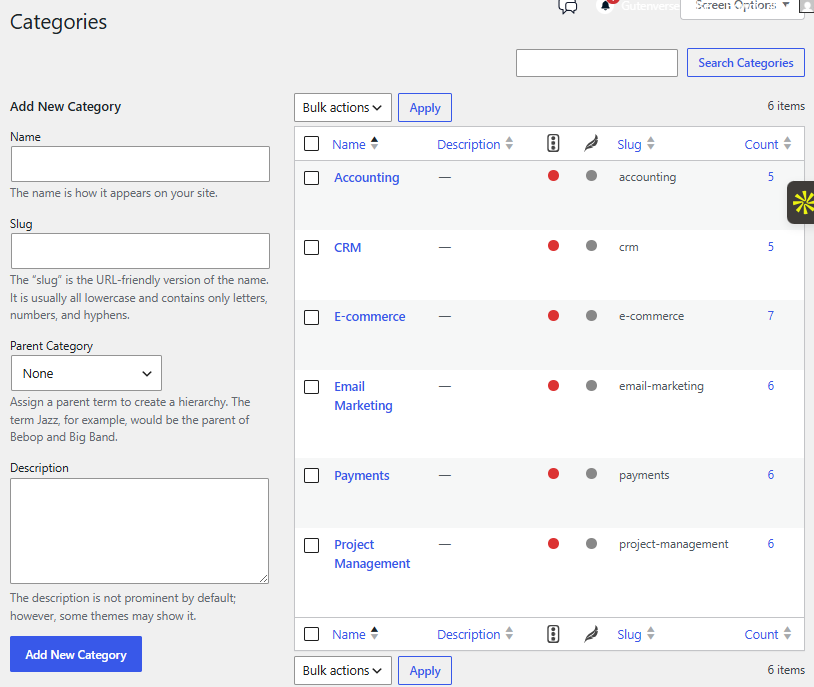
You manage categories right where you edit an Integration. Open an Integration (Active = Published, Inactive = Draft) and use the Categories box in the editor’s side column to assign existing categories or add new ones on the fly. The editor box is the everyday place to work with categories — you don’t need to leave the integration you’re editing.
Adding and assigning categories
- Assign — check any existing category in the Categories box.
- Add new — click Add New Category in the same box, type a name, and optionally pick a parent to nest it.
- Slugs auto-fill — you don’t need to type a slug; one is generated from the name. The slug is what shows in
?category=links.
Heads up: empty categories are hidden. A category only appears in the front-end filter list once at least one Published Integration is assigned to it. If a category isn’t showing up, confirm an Active Integration uses it.
Categories from a CSV import
You can also create and assign categories in bulk. On the Integrations > Settings screen, the Import / Export tab accepts a categories column. Any category names listed there are auto-created if they don’t exist and assigned to the matched Integration. A blank cell leaves an Integration’s existing categories untouched. See the Importing and Exporting article for the full column list.
How categories show up for visitors
When you deploy your directory with the [integration_directory] shortcode, a Categories filter section renders automatically (assuming you have non-empty categories). Visitors check one or more categories to narrow the listing, and the selection is reflected in the address bar via ?category=slug so the view is shareable.
If you ever want to hide the Categories section for a specific placement, set show_categories="false" on the shortcode. You can also hard-scope a page to one category with category="crm".
Categories vs. filter groups
Categories are one tool for narrowing the directory. Your filter groups — managed on Integrations > Filters — are another. They live side by side on the front end, and it helps to understand how their logic differs so you can plan your taxonomy.
You can create any number of filter groups (for example Pricing, Platform, Setup), where each group is one facet. The original Custom Filter is now the main filter group. The matching rules are consistent and easy to reason about:
| Control | Within itself | Combined with the others | Effect |
|---|---|---|---|
| Categories | OR — match any selected category | AND with other narrowed controls | Broadens within the facet |
| Each filter group (Pricing, Platform, …) | OR — match any selected option in that group | AND across groups | Broadens within the group; narrows when you add another group |
In plain terms: selecting more options inside one control widens the results (OR), while narrowing a second control tightens them (AND). For example, picking Free and Paid in a Pricing group shows integrations that are free or paid; then also picking iOS in a Platform group keeps only those that are (free or paid) and iOS.
Heads up: in earlier versions the single Custom Filter matched every selected value (AND within the one filter). That is no longer how it works. Within any group — including the main filter — selecting multiple options now broadens the results with OR. Plan your facets accordingly.
For everything about creating, renaming, and populating filter groups — plus the per-group ?f_<key>= URL parameters — see the Managing Your Filters article.
Related articles
- Managing Your Filters — create and manage filter groups, group options, and faceted logic.
- Importing and Exporting — bulk-create categories and filter options from a CSV.
- Shortcode Options —
show_categories,category, and the rest of the[integration_directory]attributes.