

Sorting, Ordering & Analytics
Your directory ships with a visitor-facing Sort-by dropdown, a way to pin your best integrations to the top, hand-arranged custom ordering, and a privacy-light click counter that powers a “Most popular” sort. This article walks through all of them.
Sorting: the Sort-by dropdown
Above the listing, visitors get a Sort-by dropdown. Changing it updates the grid, and the choice is reflected in the address bar as ?sort=<key>, which means any sort order is shareable — copy the URL and the recipient lands on the same view. For the full list of shareable URL parameters, see Shareable Links.
There are eight sort options. Here is each key, its visitor-facing label, and what it does.
Key (?sort=) |
Label | What it does |
|---|---|---|
featured |
Featured | Pins every integration with the Featured flag to the top, then lists the rest. Within each group the order is Name (A–Z). This is the default. |
name_asc |
Name (A–Z) | Alphabetical by title, ascending. |
name_desc |
Name (Z–A) | Alphabetical by title, descending. |
newest |
Newest | Most recently published first. |
oldest |
Oldest | Oldest published first. |
manual |
Custom order | Uses the hand-arranged order you set under Integrations > Order (see below). |
random |
Random | Shuffles the listing on each load — handy for giving every partner a fair shot at the top spot. |
popular |
Most popular | Orders by recorded click-throughs, most-clicked first. Stays hidden until your directory reaches 100 total click-throughs (see Click tracking & Most popular below). |
Admin controls for sorting
Both sorting controls live on the Settings tab at Integrations > Settings.
- Front-end Sort Options — tick which of the eight options appear in the visitor dropdown. Untick the ones you do not want offered. Note that the dropdown only appears when more than one sort is enabled.
- Default Sort — the order the directory uses on first load, before a visitor changes anything. It defaults to Featured.
Heads up: the orderby and order shortcode attributes are legacy and are effectively overridden by the resolved sort, so for the front-end experience you should lean on Default Sort and the enabled Sort Options rather than orderby. A visitor-supplied ?sort=<key> in the URL takes priority over your Default Sort.
Featured integrations & Custom order
Two features let you put your thumb on the scale: the Featured flag and hand-arranged Custom order.
Featured: pin an integration to the top
Open any Integration in the editor and look in the Logo box (the same box where you set the logo, which is the WordPress featured image). It also includes a Featured checkbox. Tick it to flag that integration.
Under the Featured sort — which is the default order — flagged integrations float to the top, and within both the featured and non-featured groups the order is Name (A–Z). In short: Featured first, then A–Z. Because Featured is the default sort, this is what most visitors see when they first land on the page.
The flag is stored per integration in the _intplugin_featured meta field. You can flag as many integrations as you like; they all sort to the top together.
Custom order: drag and drop
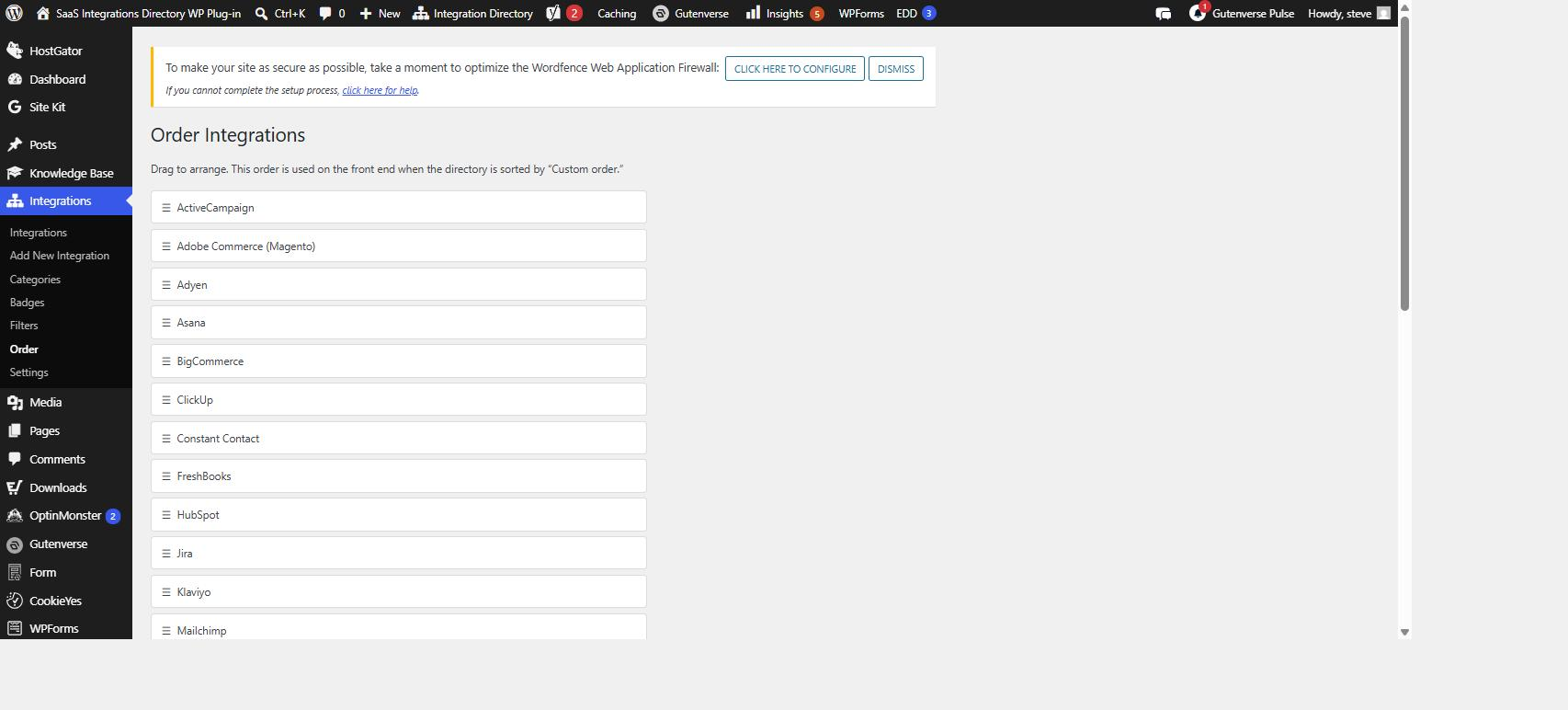
For full manual control, go to Integrations > Order. This screen lists your integrations as draggable rows — drag them into exactly the sequence you want.
That hand-arranged order is what the Custom order sort (key manual) uses on the front end. If you want visitors to be able to choose it, make sure Custom order is ticked under Front-end Sort Options; to make it the order everyone sees first, set Default Sort to Custom order.
Heads up: Featured and Custom order are independent. The Featured flag only affects the Featured sort; it does not change your drag-and-drop sequence. Likewise, dragging rows under Integrations > Order does not move anything in the Featured sort. Pick the model that fits how you want to merchandise your directory, and set Default Sort accordingly.
Click tracking & Most popular
The directory quietly records click-throughs — each time a visitor clicks an integration to open its detail page. That data drives the Most popular sort.
Heads up: this is a privacy-light counter, not visitor tracking. It tallies how many times each integration was opened — it does not store who clicked, when, IP addresses, or any session or event log.
Most popular: an unlockable sort
The Most popular option (key popular) orders the listing by click-throughs, most-clicked first. To keep early, noisy data from producing a meaningless ranking, it stays hidden from the visitor dropdown until your directory reaches 100 total click-throughs. Once you cross that threshold, Most popular becomes a normal selectable option (and an available Default Sort).
Developers can change the 100-click threshold with the intplugin_popular_threshold filter. For example, to unlock Most popular after 50 clicks:
add_filter( 'intplugin_popular_threshold', function () {
    return 50;
} );
Search Insights (Analytics tab)
Go to Integrations > Settings and open the Analytics tab. At the bottom of that tab, Search Insights turns your directory’s own search box into a demand report. As visitors type in the search box, the plugin records the term they settle on — captured about 1.5 seconds after they pause typing, with a two-character minimum. It works for logged-out visitors too, so you see what everyone is actually looking for, not just signed-in users.
Search Insights shows two tables:
- Top searches — the terms visitors search most, ranked by frequency (up to 20). This tells you what people come to your directory hoping to find.
- Searches with no results — a ranked list of terms that returned nothing (up to 20). Read this as a to-do list: it is the clearest signal of which integrations to add, rename, or better describe next.
Heads up: “no results” is judged against your whole published catalog, not against a visitor’s current category or filter selection. A term only lands in the no-results table when nothing in the entire directory matches it — so it reflects a genuine gap, not the effect of a narrowed view.
A Clear search data button wipes the log. This is permanent and all-or-nothing — you clear everything at once — so it asks you to confirm first.
What Search Insights does and does not do
Search Insights is admin-only and privacy-light by design:
- It stores only a running count per term — no record of who searched, when, or from where, and no timestamps, trends, IP addresses, or off-site transmission.
- Terms are lowercased and de-duplicated before counting, so CRM and crm roll up into one entry.
- The log keeps up to 500 distinct terms. When it fills up, it evicts entries to make room, keeping the no-results terms preferentially so your demand report stays intact.
- It is always on — there is no UI switch to turn it off. If you want to reset it, use the Clear search data button.
Related articles
- Shareable Links — the shareable
?sort=link and the other directory URL parameters. - Building an Integration — set an integration’s Featured flag, logo, Preview Text, and the rest of its profile.