

Call to Action & Lead Capture
What the call to action is
The call to action (CTA) is an optional block that renders at the bottom of every published integration’s detail page — after the content, on the single integration page at /integrations/{slug}. It does not appear on the directory listing itself. That single placement turns each integration page into an on-site lead channel: a visitor who has just read about an integration gets one clear next step, whether that is starting a trial, requesting a demo, emailing your team, or filling out a form.
Heads up: the CTA renders only on Published integrations. Drafts and previews do not show it. If a page has no CTA, confirm the integration is published and that a link (or form) is actually configured.
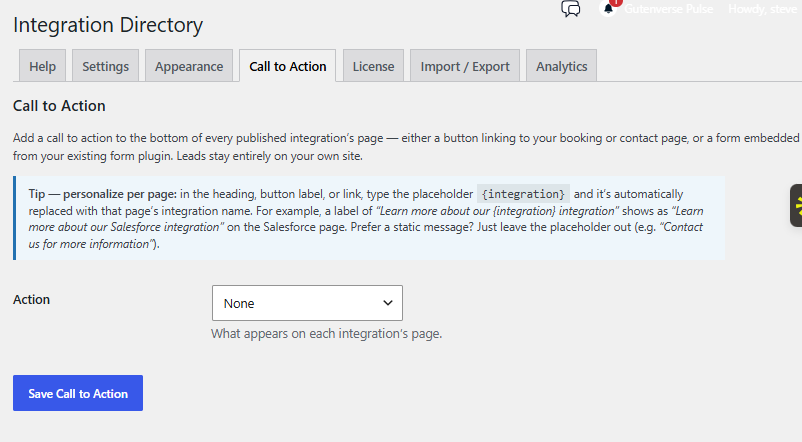
You configure the CTA on the Integrations > Settings screen, on the Call to Action tab. That tab is its own form with its own Save button, separate from the Settings and Appearance forms on the same screen.
Choosing a mode
The Action dropdown sets what the CTA does. There are three modes:
- None — the default. Nothing renders on any integration page.
- Button — shows a clickable button that links somewhere (a signup page, a mailto: address, or a phone number).
- Embedded form — renders a form from a form plugin you already use, right on the integration page.
An optional Heading field sits above the action in both Button and Embedded form modes; when filled it renders in an <h3>. Leave it blank if you don’t want a heading.
Button mode
Button mode shows a single button. Two fields control it:
- Button label — the text on the button. If you leave it blank, the button reads “Get Started”.
- Button link — where the button goes. It accepts an
http(s)URL, amailto:address, or atel:number.
Two checkboxes fine-tune the behavior:
- Open link in new tab — opens the destination in a new browser tab.
- Pass the integration name to the link — carries the current integration’s name through to the destination so you know which page the lead came from. What it appends depends on the link type:
- Web links (
http(s)) get?integration=Nameadded, with the name URL-encoded. mailto:links get a subject ofInquiry about Name.tel:links are left unchanged — there is nothing to pass.
- Web links (
Heads up: if the Button link is blank and the integration has no per-integration override, nothing renders. An empty link is not shown as a dead button.
Embedded form mode
Embedded form mode lets you drop a real form onto every integration page. The Integrations Directory has no built-in form engine of its own — the form comes from a form plugin you already run. Paste that plugin’s shortcode into the textarea and it renders in place via WordPress’s shortcode handling.
Any of the common form plugins work, including Contact Form 7, WPForms, Fluent Forms, and Gravity Forms. Because your form plugin handles delivery, storage, and spam protection, every lead stays on your own site and inside the tools you already trust — nothing is routed off-site by the directory.
Heads up: if the shortcode textarea is empty, or the form plugin it belongs to is inactive or the shortcode is mistyped, the CTA simply shows nothing. It never prints a raw, literal shortcode to visitors.
The {integration} merge tag
You can personalize the CTA per page with the {integration} merge tag (its synonym {name} behaves identically). On each integration’s page it is replaced with that integration’s name. The tag works in the Heading, the Button label, and the Button link.
- In a heading or label it becomes plain text — for example a heading of
Ready to connect {integration}?reads “Ready to connect Acme CRM?” on the Acme CRM page. - In a link it is URL-encoded so it is safe to drop into a query string — for example
https://example.com/start?app={integration}.
Overriding the CTA for one integration
The Call to Action tab sets a global button that applies to every integration. When a single integration needs to point somewhere different, you can override it right in that integration’s editor. In the Details box you’ll find two optional fields:
- Call-to-action link (optional override) — a link that replaces the global Button link for this integration only.
- Call-to-action label (optional) — a button label for this integration only.
Both fields honor the {integration} merge tag, just like the global settings. This is handy when most integrations share one signup URL but a few need their own destination. See the Building an Integration article for a walkthrough of the Details box, and Richer Integration Profiles for the other content each integration page can carry.
Related articles
- Building an Integration — the Details box, including the per-integration Call-to-action link and label overrides.
- Richer Integration Profiles — the video, screenshots, resources, and other content that fill out an integration page above the CTA.