

Shortcode Options
The [integration_directory] shortcode is the most direct way to put your directory on a page. Drop it on any page and you get the full listing — but a handful of attributes let you control the layout, scope it to part of your catalog, turn search on, and decide how many integrations show before a Load more button appears. This article is the reference for those attributes.
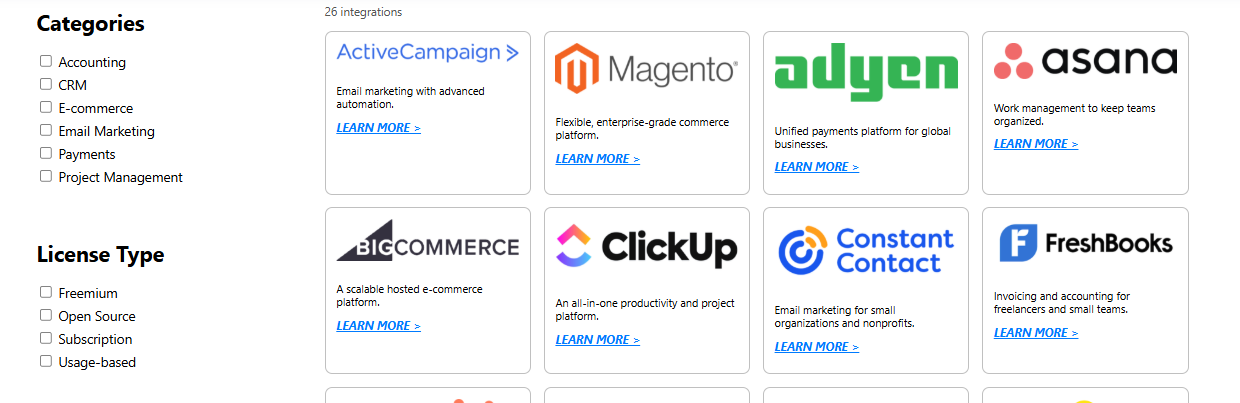
The shortcode is one of several ways to configure the directory. If you would rather not touch a shortcode at all, the Using the Block Editor article covers the Integration Directory block, which exposes the most common options as visual controls. For the directory’s look — accent color, card style, corner rounding, and the site-wide default column count — see Appearance & Styling. And for the URL parameters that turn any view into a shareable link (?sort=, ?category=, ?f_<key>=, and the rest), see Shareable Links.
The shortcode and its attributes
At its simplest, the whole directory is one line:
[integration_directory]
Every attribute below is optional. Leave one off and the default applies. Attributes are written inside the shortcode, like [integration_directory layout="list" columns="3"].
| Attribute | Accepts | Default | What it does |
|---|---|---|---|
category |
Category slug(s) | (none) | Hard-scopes the directory to one or more Categories and hides the Categories filter section. Visitors only ever see integrations in that scope. |
criteria |
Main-filter slug(s) | (none) | Hard-scopes the directory to one or more options of the main filter. When set, that filter’s section is hidden from the sidebar (it’s already locked in). |
layout |
grid, list, compact |
grid |
Card grid, a roomier row layout, or a tight text list. |
columns |
1–6 |
site default (4 out of the box) | Number of columns in the grid layout. When you leave it off, the directory uses the default set under Appearance & Styling (4 out of the box). Values are clamped to 1–6. Ignored by list and compact. On phones (screens 736px and narrower) the grid always drops to 2 columns. |
orderby |
Legacy | (legacy) | A legacy starting-order hint. In practice it is overridden by the resolved visitor sort (the Sort by dropdown and ?sort=). See Sorting, Ordering & Analytics. |
order |
Legacy | (legacy) | Direction for orderby. Also overridden by the resolved sort. Prefer the sort controls instead. |
limit |
Number | -1 (= all) |
A hard cap on how many integrations the directory will ever load. Different from per_page — limit is the total ceiling; per_page is how many show before Load more. |
per_page |
Number | 0 (= all) |
How many integrations show before a Load more button appears. 0 shows everything at once with no button. See the next section. |
show_filters |
true, false |
true |
Master switch for the whole filter sidebar (Categories + every filter group). |
show_categories |
true, false |
true |
Show or hide just the Categories section of the sidebar. |
show_custom_filter |
true, false |
true |
Show or hide the filter-group sections of the sidebar (every group at once). |
search |
true, false |
false |
Adds a search box above the results so visitors can search the directory. |
url_params |
true, false |
true |
Whether visitor choices (sort, filters, search, layout) are written to the address bar and read back from it. Turning this off disables shareable links for that directory. See Shareable Links. |
Heads up: category and criteria scope the directory — they restrict what visitors can ever see and hide the matching filter section. That is different from the URL parameters ?category= and ?criteria=, which only pre-select a filter that the visitor can then change. If you want a placement locked to part of your catalog, use the attributes here; if you just want to open the directory on a particular view, use a link. The link side is covered in Shareable Links.
Heads up: orderby and order are legacy attributes and are effectively overridden by the resolved visitor sort, so setting them rarely does what you expect. To control the order, use Front-end Sort Options and Default Sort under Integrations > Settings, described in Sorting, Ordering & Analytics.
Result count and Load more (per_page)
Every directory shows a small “N integrations” count just above the results, so visitors always know how big the current (filtered, searched) set is. It reads 1 integration in the singular and 12 integrations in the plural, and it updates live as filters and search narrow the set.
By default the directory paints every matching integration at once. If your catalog is large, set per_page to show a first batch and reveal the rest on demand:
[integration_directory per_page="12"]
That shows the first 12 integrations and adds a Load more button underneath. Each click reveals the next batch of the same size — another 12, then another 12 — until the full set is on screen, at which point the button goes away. The “N integrations” count always reflects the total in the current set, not just what’s currently visible.
Heads up: this is a Load more control, not numbered pagination — there are no page-1/page-2/page-3 links, and the URL doesn’t carry a page number. If you want a hard maximum on what the directory will ever load, that’s the separate limit attribute; per_page only controls the batch size for Load more.
Scenarios
A clean, compact list with no sidebar
Good for a tight “works with” section on a marketing page:
[integration_directory layout="compact" show_filters="false"]
A three-column grid scoped to one category, with search
Shows only the CRM category, in three columns, with a search box:
[integration_directory category="crm" columns="3" search="true"]
Lock the directory to one main-filter option and hide that filter
Scopes everything to the Free option of the main filter and removes that section from the sidebar (it’s already locked in):
[integration_directory criteria="free"]
A large catalog with Load more
Shows the first 12 integrations and reveals the rest in batches of 12 via a Load more button:
[integration_directory per_page="12"]
Pair it with a tidier layout if your catalog is long:
[integration_directory layout="list" per_page="20"]
A category grid with the filter sidebar turned off
Shows the Accounting category as a four-column grid, but with no filter sidebar at all — handy when the placement is already about one category:
[integration_directory category="accounting" show_filters="false"]
Heads up: to open the directory on a pre-sorted or pre-filtered view — for example the newest free integrations, or the list sorted by Most popular — you don’t change the shortcode. You build a link to the page that already holds it, using URL parameters. That is covered end to end in Shareable Links.
Multiple directories on one page
You can place more than one [integration_directory] shortcode on the same page — for example a compact “works with” strip near the top and a full, filterable directory further down. Each instance is configured independently by its own attributes, and they no longer interfere with one another.
Heads up: only the first directory on the page with url_params enabled reads and writes the shareable address-bar parameters. Any additional directories still filter, sort, and search normally, but they don’t sync their state to the URL. If you want a particular directory to own the shareable links, place it first or set url_params="false" on the others. See Shareable Links.
Related articles
- Shareable Links — the URL parameters (
?sort=,?category=,?criteria=,?f_<key>=, and the display overrides) that turn any filtered, sorted, or searched view into a link you can share. - Using the Block Editor — the Integration Directory block, a no-shortcode way to place the directory with visual controls.
- Appearance & Styling — accent color, card style, corner rounding, and the site-wide default column count.
- Sorting, Ordering & Analytics — choose the default and available sorts, drag-and-drop your Custom order, and track the click-throughs that unlock Most popular.
- Managing Your Filters — create, rename, and populate the filter groups behind the sidebar sections.