

Managing Your Filters
What is a filter group?
A filter group is a single facet that visitors can filter your directory by — think Pricing, Platform, or Setup. Each group holds a set of options (for example, a Pricing group might offer Free, Paid, and Freemium), and each integration can be tagged with any of those options.
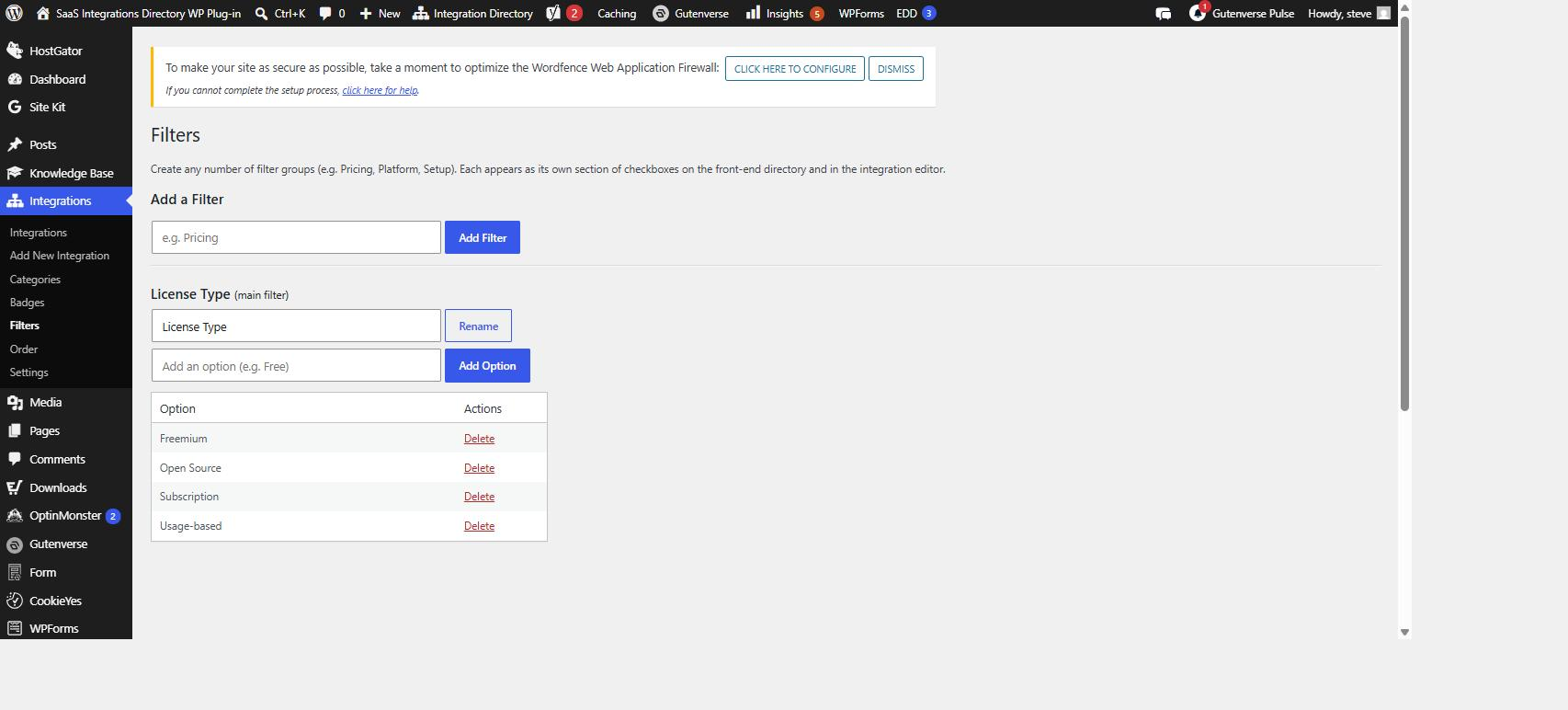
You can create any number of filter groups. The Integrations Directory plugin started with a single “custom filter,” but in this version that one filter has grown into a full multi-group system. Every group becomes its own filter section on the front-end directory and its own checkbox section on the editor — so you can slice your integrations by as many dimensions as make sense for your audience.
Heads up: filter groups are not the same as categories or badges. Categories are a public, hierarchical taxonomy managed from the Categories box on each integration. Badges (managed under Integrations > Badges) are display-only labels that appear as small pills on the listing — they are not a filter facet. Filter groups are the only thing visitors actually filter by.
Where filter groups live
Everything to do with filter groups is managed in one place: Integrations > Filters. (If you used an earlier version, this is the renamed and expanded old “Custom Filter” page.) From here you can add groups, rename them, delete them, and manage the options inside each one.
When you first install the plugin, you start with one default group. If you upgraded from an older version, your single custom filter is automatically converted into your first group — nothing to migrate by hand.
The main filter
The first group — the one with the key criteria — is special. It is labeled the main filter on the Integrations > Filters screen, and it has one important rule:
Heads up: the main filter can be renamed and its options can be emptied, but it cannot be deleted. It is wired into two things that other parts of the plugin depend on: the criteria column in your CSV imports and exports, and any legacy ?criteria= links that might already be out in the wild (in emails, bookmarks, or pages on other sites). Deleting it would break those references, so the plugin keeps it permanently. Every other group you create is fully deletable.
Adding, renaming, and deleting groups
On Integrations > Filters, each group is shown as its own panel with its options listed underneath.
- Add a group. Enter a name (for example, Platform) and save. The plugin creates the group and generates an internal key from the name automatically — you don’t manage keys by hand.
- Rename a group. Edit the group name and save. Renaming changes only the label shown to you and your visitors; it does not change the group’s key or its options.
- Delete a group. Use the delete control on any group except the main filter. Deleting a group removes that group and all of its options from the system. The main filter has no delete control — only rename and empty.
Managing options within a group
Inside each group panel you can add a new option and remove an existing one. Add the options your visitors will actually want to filter by — keep them short and clear (Free, Paid, Self-serve, Managed), because each option becomes a checkbox on the front end.
You don’t always have to add options by hand. When you run a CSV import, any filter-group option that appears in the file is created automatically if it doesn’t exist yet. See Importing & Exporting Integrations for the details.
How groups appear in the editor and on the front end
In the editor (assigning options)
Open any Integration for editing and look at the side column. You’ll see one checkbox section per filter group. Tick the options that apply to that integration — for example, check Paid under Pricing and Cloud under Platform — then update the integration. These assignments are what visitors filter against.
On the front-end directory (filtering)
Wherever you’ve placed the [integration_directory] shortcode, the directory renders one filter section per group in the sidebar, each showing its options as checkboxes. Visitors tick options to narrow the list; results refresh without a full page reload.
Heads up: a filter group with no options is skipped entirely on the front end. That keeps a half-finished group from cluttering the public view while you’re still building things out — as soon as a group has at least one option, it appears with all of its options listed.
How the filtering logic works
This is the part worth understanding, because it shapes what visitors see. The directory uses faceted filtering, which means two different rules apply depending on whether selections are inside one group or spread across several.
OR within a group
When a visitor checks more than one option inside the same group, the directory widens the results to match any of them. Checking both Free and Paid under Pricing shows every integration that is Free or Paid — not just ones that are somehow both.
Heads up: if you used the old single custom filter, this is a behavior change. The old filter matched every selected value (an AND within the one filter). Within a group, selections are now OR. So a visitor checking two boxes in one group now sees more results, not fewer.
AND across groups
When a visitor narrows two different groups, the directory requires both conditions to be satisfied. Choosing Paid under Pricing and Cloud under Platform shows only integrations that are Paid and on Cloud. Each group narrows further; options within a group widen.
Put together: OR inside each group, AND between groups. That combination is what lets visitors build a precise query like “show me anything Free or Freemium, that also runs on Cloud.”
| Visitor selection | Rule applied | What they see |
|---|---|---|
| Free + Paid (both in Pricing) | OR within the group | Integrations that are Free or Paid (a wider list) |
| Paid (Pricing) + Cloud (Platform) | AND across groups | Integrations that are Paid and on Cloud (a narrower list) |
| Free + Freemium (Pricing) + Cloud (Platform) | OR within, AND across | Integrations that are (Free or Freemium) and on Cloud |
Shareable filter URLs
Every filter group has its own URL parameter, so a filtered view is a real link your visitors can bookmark or share. The format is ?f_<key>=slug,slug — the group’s key prefixed with f_, followed by a comma-separated list of option slugs.
For example, to land visitors on a directory pre-filtered to Free and Paid pricing:
?f_pricing=free,paid
You can combine parameters from different groups to pre-apply an across-group filter, and you can add ?sort= to set the sort order at the same time. As a visitor checks and unchecks boxes, the plugin keeps the address bar in sync — so they can copy the URL at any point and the link reproduces exactly what they’re looking at.
Legacy ?criteria= links
Older links that use ?criteria= still work. That parameter pre-selects the main filter group, exactly as it did before. This is the second reason the main filter can’t be deleted — those links depend on it. New work should use ?f_criteria= (or whatever the main filter’s key is), but you don’t need to go hunting for old ?criteria= links to fix them.
Heads up: shareable filter URLs rely on the shortcode’s url_params attribute, which defaults to true. If you’ve set url_params="false" on a particular directory, that instance won’t read filter parameters from the URL or update the address bar. See Shareable Links.
Showing, hiding, and scoping filter groups
By default, the directory shows all of your filter groups. You can change that per shortcode instance:
show_filters="false"hides the entire filter sidebar (both categories and all filter groups).show_custom_filter="false"hides just the filter groups, while leaving the category filter in place.- The
criteriaattribute hard-scopes a directory to one or more main-filter options. When you scope this way, the main filter section is hidden from the sidebar — visitors are already inside that slice, so there’s nothing left for them to choose there.
For the full list of attributes and how to combine them, see Shortcode Options.
Related articles
- Shortcode Options — shortcode attributes for hiding and scoping filter groups, plus layout and Load more.
- Importing & Exporting Integrations — how the CSV maps a column to each filter group and auto-creates options on import.